Three months ago, our sales pipeline was hemorrhaging qualified leads.


The pattern was identical every afternoon: an inbound prospect would fill out a form on our website, express urgent interest in our service, and then… nothing. Our sales team would send a polite follow-up email 15 minutes later, only for it to land in a crowded primary inbox or rot away in a spam folder.
By the time a rep manually tried calling or messaging the prospect hours later, the lead had already moved on to a competitor who replied instantly.
We were spending thousands on paid ads to push traffic into HubSpot, but our conversion rate was sinking. That’s when we stopped fighting consumer behavior and met our leads where they actually live: WhatsApp.
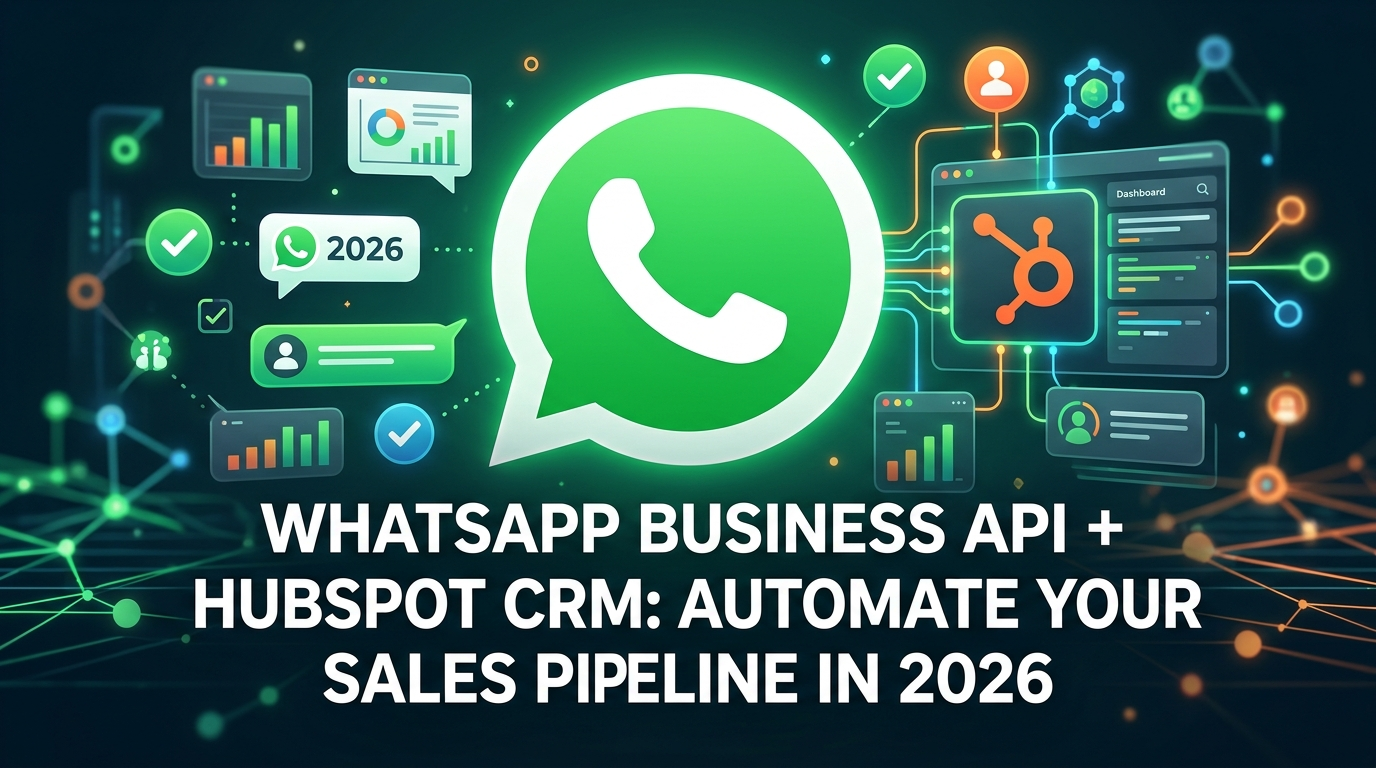
Integrating the WhatsApp Business API directly into HubSpot CRM didn’t just fix our response times—it completely automated our pipeline. Here is how we set this up, the costly mistakes we made along the way, and how you can do it yourself.
Why Standard WhatsApp (and Standard Email) Fails Scaling Teams
When we first realized we needed WhatsApp, we tried doing it the cheap way. We handed a company phone with the free WhatsApp Business app to one of our SDRs.
It was a disaster within forty-eight hours:
- Zero CRM Context: Conversations were trapped on a physical phone. Nobody else on the team knew what was said.
- No Pipeline Automation: Reps had to manually copy-paste names and phone numbers into HubSpot. They forgot half the time.
- The 24-Hour Messaging Window: We didn’t understand Meta’s messaging policies, leading to missed follow-ups once prospects went silent for a day.
- Burnout: One rep was trying to handle 40 simultaneous chats. Messages got dropped, responses were delayed, and lead quality tanked.
The free app is built for a local shop, not a scaling sales team using a powerful CRM. To scale, you need the WhatsApp Business API combined with HubSpot’s workflow engine.
What Happens When You Bridge WhatsApp Business API and HubSpot?
When you connect the API to HubSpot (either natively via Marketing/Service Hub Professional or through official BSP connectors like Wati or Respond.io), your messaging turns into a dynamic, automated pipeline tool.
Here is what the day-to-day workflow actually looks like in practice:
- Instant Lead Capture: A user submits a form on your landing page.
- Automated WhatsApp Verification: Within 3 seconds, a personalized WhatsApp message hits their phone: “Hey [First Name], saw you requested a demo. Do you have 2 minutes to chat right now?”
- Smart Routing: When the prospect replies “Yes”, HubSpot’s round-robin engine assigns the deal to an active sales rep and logs the conversation thread directly on the contact timeline.
- Interactive Qualification: A light chatbot asks two screening questions before human handoff.
- Automated Pipeline Moves: If the prospect selects “Ready to book,” HubSpot automatically moves their deal stage to “Demo Scheduled” and texts them a Meeting link.
Step-by-Step Setup: Building Your Automated Pipeline
Here is the practical roadmap to getting this running without crashing your data structure.
Step 1: Secure an Official WhatsApp Business API Account
You cannot use a standard SIM phone number that is already active on a personal WhatsApp account.
- Get a fresh, clean phone number dedicated purely to your business.
- Verify your business on Meta Business Manager.
- Select an API access route: You can link directly via HubSpot’s native Cloud API setup or use an official Business Solution Provider (BSP).
Step 2: Establish Your Data Mapping Strategy
Before sending a single message, map your custom properties. Decide what happens to prospect responses:
- Inbound WhatsApp Message $\rightarrow$ Create Contact (if new) or Update Existing Contact.
- Phone Number Format $\rightarrow$ Standardize to E.164 (
+[country code][number]) in your HubSpot form fields. If your forms accept standard local numbers without a country code, your automated API messages will fail quietly.
Step 3: Draft and Submit Meta Template Messages
The WhatsApp Business API enforces a strict rule: to start a conversation with a customer (or message them outside a 24-hour window), you must use a pre-approved Meta Template.
Keep your templates short, human, and clear.
Winning Template Example:
“Hi {{1}}, thanks for checking out {{2}}! I’m {{3}} from the product team. Quick question: are you looking to solve this for a team or just yourself?”
Avoid aggressive pitch language, excessive emojis, or ALL CAPS in templates, or Meta’s automated review will reject them.
Step 4: Build Your Core HubSpot Automation Workflows
Once your API integration is live, head to HubSpot $\rightarrow$ Automation $\rightarrow$ Workflows.
Here are the two workflows that transformed our team’s conversion numbers:
Workflow A: The 5-Minute Lead Accelerator
- Trigger: Form Submission = Any Contact Form.
- Delay: 1 minute (makes it feel human, not instant-bot).
- Action: Send WhatsApp Business API Template.
- If/Then Branch: Did contact reply within 15 minutes?
- Yes: Rotate Contact Owner to Sales Team $\rightarrow$ Create Deal in “In Discussion” stage $\rightarrow$ Send internal notification to rep on Slack/HubSpot.
- No: Send automated follow-up email 24 hours later.
Workflow B: The Stale Deal Re-Engager
- Trigger: Deal Stage = “Proposal Sent” AND Last Contacted > 4 days ago.
- Action: Send WhatsApp Message: “Hey [First Name], just sent over the revised numbers on email. Let me know if you want me to tweak anything!”
3 Costly Mistakes We Made (So You Don’t Have To)
Setting this up was not all smooth sailing. We hit three massive friction points during our rollout that cost us time and leads.
1. Forgetting the E.164 Phone Format
We spent our first two days wondering why half our automated messages were failing. It turned out our web forms allowed users to enter local phone numbers without country codes. The API requires international formatting (e.g., +1... or +44...). We added country code auto-detection to our forms, which solved the issue instantly.
2. Treating WhatsApp Like an Email Blast
During month two, someone on marketing decided to send an aggressive promotional broadcast to 2,000 old leads. The result? Dozens of users marked the message as spam. Our Meta Quality Score plummeted from High to Low, and Meta restricted our daily messaging limit.
Lesson: WhatsApp is a high-intent, private messaging channel. Use it for conversational sales, instant assistance, and scheduled reminders—not batch-and-blast marketing newsletters.
3. Ignoring the 24-Hour Customer Service Window
If a customer messages you on WhatsApp, you have a 24-hour open window to chat freely using plain text. Once 24 hours pass from their last message, the window closes. You cannot send free-form text anymore—you must use an approved template to re-open the chat. We had to train our reps to use template triggers directly inside the HubSpot Inbox interface to re-engage silent prospects.
Real World Results: What Changing the Channel Did for Us
After running our pipeline on the HubSpot + WhatsApp Business API setup for a full quarter, the metrics were clear:
| Metric | Before (Email Only) | After (WhatsApp + HubSpot) |
| First Response Time | 42 minutes | 45 seconds |
| Lead Engagement Rate | 14% | 61% |
| Sales Cycle Duration | 18 days | 11 days |
| Pipeline Conversion | 3.2% | 7.8% |
When you eliminate friction for the customer, your sales pipeline moves faster automatically. Prospects don’t want to check their email, schedule a calendar slot, and wait three days for an introductory call just to get a simple question answered. They want an answer on their phone, right now.
The Verdict
Automating your sales pipeline isn’t about removing humans from the process—it’s about removing the manual, repetitive admin work that slows your sales reps down.
By pairing WhatsApp Business API with HubSpot CRM, you give your sales team superpowers: instant response capabilities, full conversation tracking on contact records, and effortless follow-ups that keep deals moving forward.
If your sales team is currently struggling with cold leads, low email open rates, and manual data entry, this integration is the highest-leverage upgrade you can make to your growth stack this year.